

In a world where every pixel counts, having the right image size on your iPhone can make all the difference. Whether you’re trying to fit that perfect sunset shot into a text message or uploading a masterpiece to social media, resizing images can feel like a daunting task. But fear not! Adjusting image size on your iPhone is simpler than finding a cat video online.
Understanding Image Size on iPhone
Image size plays a crucial role in how photos appear on an iPhone. Correct sizing enhances visibility and performance across various applications.
Importance of Image Size
Image size directly affects quality. Larger images often retain more detail, making them ideal for prints or high-resolution displays. Furthermore, reduced image size helps in faster uploads and downloads, especially on limited bandwidth connections. Compression can maintain acceptable quality while minimizing storage usage. Adjusting images to the right dimensions for specific platforms ensures optimal presentation and user experience.
Common Reasons for Adjusting Image Size
Several factors necessitate resizing images on an iPhone. Social media platforms frequently require specific dimensions for better fit and visibility. Emailing images also benefits from size reduction to avoid exceeding attachment limits. Additionally, uploading photos to websites often requires compression for faster loading times. Resizing images aids in conserving storage space on devices when managing numerous photos.
Methods to Adjust Image Size on iPhone
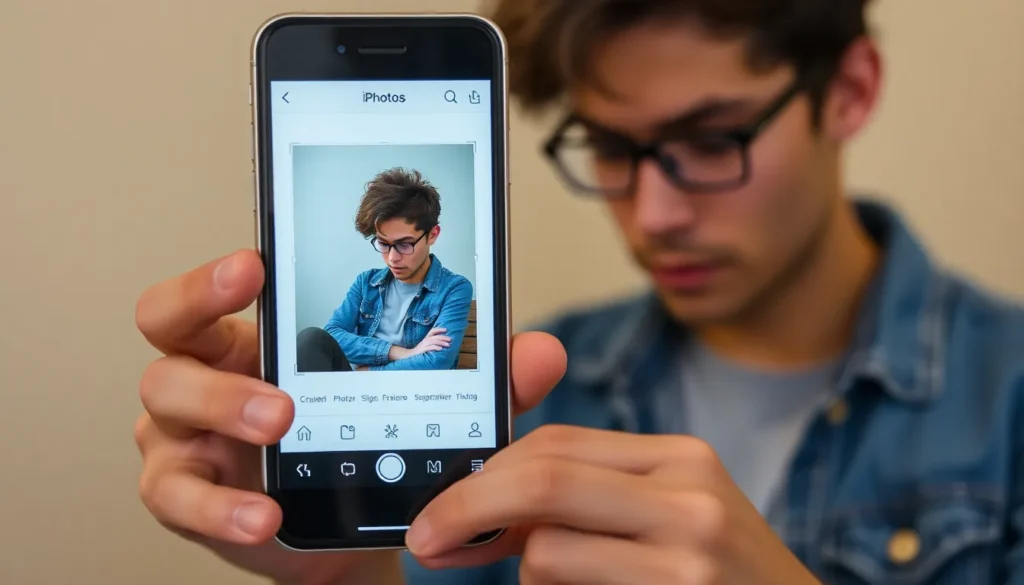
Resizing images on an iPhone can enhance usability for various scenarios. The two primary methods include using the Photos app and third-party applications.
Using the Photos App
Open the Photos app to begin. Select the photo you want to resize. Tap “Edit” in the upper right corner. Choose the cropping tool, which appears as a square with arrows. Adjust the dimensions by dragging the corners to achieve the desired size. After changing the crop, save the image. This technique changes the visible area, effectively reducing the overall file size. Users find this method simple and effective for quick adjustments.
Using Third-Party Applications
Explore various third-party applications for resizing images. Applications like Image Size or Resize Image offer user-friendly interfaces. Download your preferred app from the App Store. Open the app and upload the image needing adjustment. Enter the desired dimensions or choose preset sizes tailored for platforms like Instagram or Facebook. After entering the measurements, tap “Resize” to process the image. Many apps also allow for compression, making them ideal for email attachments or storage optimization.
Best Practices for Image Resizing
Proper image resizing involves strategies to ensure images remain clear and visually appealing. Prioritizing image quality during resizing can preserve essential details and enhance overall appearance.
Maintaining Image Quality
Image quality directly affects how pictures appear across various platforms. To retain sharpness, avoid excessive resizing; minor adjustments often yield better results. When using the Photos app, crop images rather than stretching them. Cropping eliminates unnecessary portions while keeping prominent details intact. Compression tools in third-party applications also play a key role. Users can adjust compression settings to balance quality and file size. Exploring different formats, such as JPEG or PNG, can further help maintain quality during resizing.
Choosing the Right Format
Selecting the appropriate image format significantly impacts performance. JPEGs are ideal for photographs, offering excellent quality with manageable file sizes. PNGs excel in clarity and support transparent backgrounds, making them suitable for graphics. Consider the final purpose of the image before choosing a format. For social media, JPEG typically suffices, while PNG can better serve logos or images requiring transparency. Users might also opt for HEIF format on iPhones for efficient storage without sacrificing quality, especially for high-resolution images.
Adjusting image size on an iPhone is an essential skill that enhances the overall experience of managing photos. Whether it’s for social media posts or sending images via email resizing ensures optimal quality and performance. Users can easily navigate the built-in Photos app or explore third-party applications to find the best methods for their needs.
By understanding the importance of image dimensions and formats users can maintain clarity while optimizing file sizes. This not only improves upload times but also conserves storage space on their devices. Mastering these techniques will empower users to make the most of their iPhone’s photography capabilities.


